
How to Copy and Paste on Chromebook (2026 Guide)
Introduction
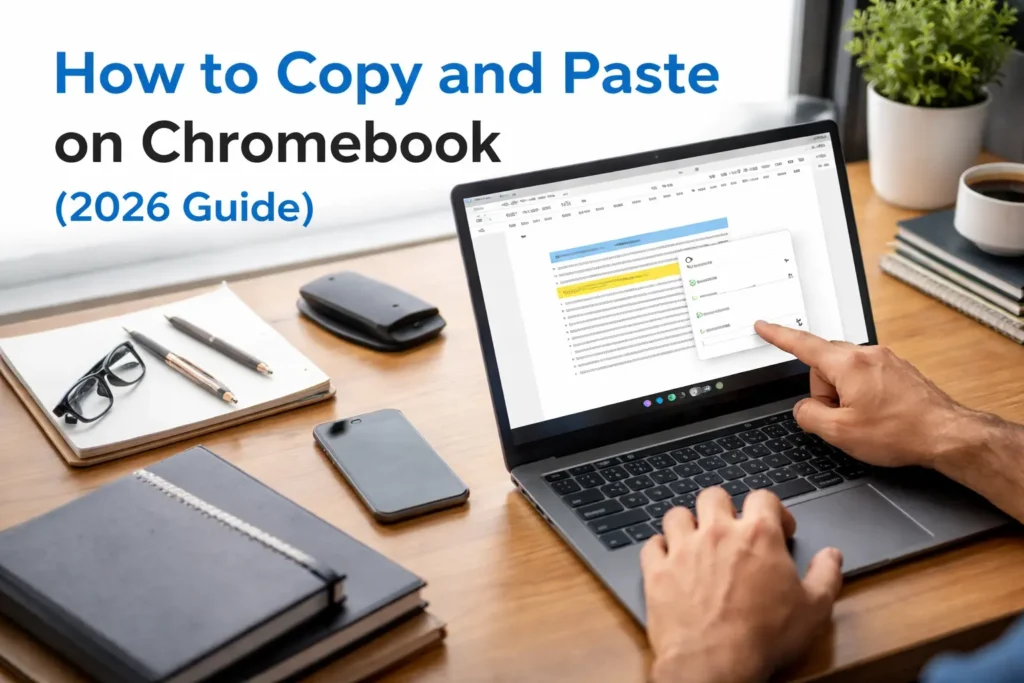
Copy and paste on a Chromebook is one of the most basic yet essential functions you will use every day while working, studying, or browsing online. In simple terms, copying means selecting text, images, or files and temporarily saving them in a hidden storage area called the clipboard. Pasting means taking that saved content and placing it somewhere else, such as a document, email, or website form.
On ChromeOS, the process works almost the same as on Windows or Mac, but the experience feels slightly different because Chromebooks are designed around cloud-based work and web applications. Whether you are writing an assignment in Google Docs, sending an email through Gmail, or collecting information from websites, understanding how to copy and paste on a Chromebook makes everything faster and more efficient.
The key thing to remember is that Chromebooks do not permanently store copied content. Instead, it keeps it temporarily in the clipboard until you copy something new or restart the device. This simple system allows users to move content quickly without needing extra software or complicated tools.
Why Learning Copy and Paste on Chromebook is Important
Learning how to copy and paste on a Chromebook is not just a basic skill; it is a productivity foundation. Most Chromebook users rely heavily on web-based tools, which means they constantly move information between tabs, documents, and apps.
For students, this function is especially important when researching online and writing assignments. Instead of rewriting text manually, they can quickly copy useful information and paste it into Google Docs or notes. For professionals, it helps in managing emails, reports, and online communication more efficiently. Even casual users benefit when saving links, sharing messages, or organizing information.
The simplicity of ChromeOS is one of its biggest strengths, and copy-paste functionality plays a major role in that simplicity. Once you master it, you will notice that your workflow becomes smoother, faster, and far less frustrating. Many users underestimate this basic skill, but in reality, it is one of the core actions that support almost everything you do on a Chromebook.
How the Chromebook Keyboard is Different from Other Devices
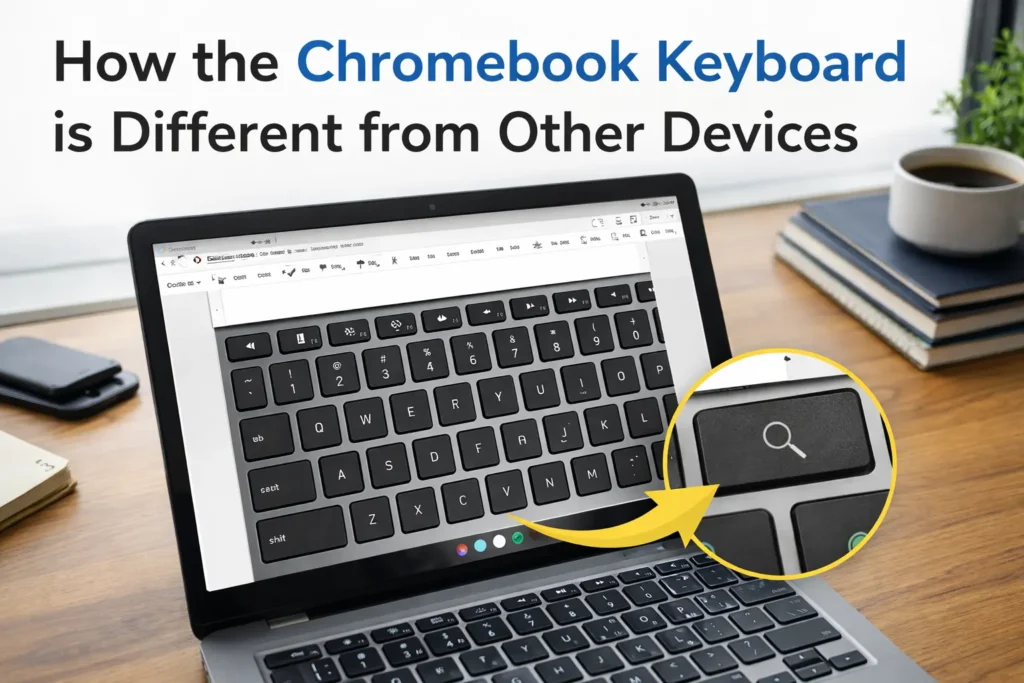
Before learning the shortcuts, it is important to understand that Chromebook keyboards are slightly different from traditional Windows or Mac keyboards. One of the most noticeable differences is the Search key, which replaces the Caps Lock key found on most other laptops. This key is often used for launching the app launcher and accessing shortcuts quickly.
Despite these differences, the copy and paste functions remain familiar and easy to use. ChromeOS is designed to feel intuitive, so even if you are switching from another device, you will quickly adapt.
Most of the common shortcuts you already know still work on Chromebook, especially when it comes to basic tasks like copying and pasting. The system is built to reduce complexity, meaning users can focus more on work and less on learning complicated commands.
Understanding this difference helps you feel more comfortable with your device and prepares you for using shortcuts more effectively in the next steps.
☑️ You might also like: URLWO
Basic Method: How to Copy and Paste Using Keyboard Shortcuts
The fastest and most commonly used method to copy and paste on a Chromebook is through keyboard shortcuts. These shortcuts are simple, quick, and work across almost all applications.
To copy text or an item, you first need to select it by highlighting it using your trackpad or mouse. Once selected, you press the combination of Ctrl and C on your keyboard. This action copies the selected content and stores it in the clipboard.
To paste that content, you move your cursor to the location where you want the information to appear and press Ctrl and V. The copied content will instantly appear in that new location.
If you want to move content instead of copying it, you can use Ctrl and X. This cuts the content from its original location and allows you to paste it somewhere else.
These shortcuts work in almost every situation on a Chromebook, whether you are typing in Google Docs, filling out forms, or browsing the web. Once you get used to them, they become second nature and significantly speed up your workflow.
Mastering these simple keyboard shortcuts is the first and most important step in understanding how to copy and paste on a Chromebook effectively.
How to Copy and Paste Using the Touchpad (Trackpad Method)
While keyboard shortcuts are the fastest way to copy and paste on a Chromebook, the touchpad method is just as important, especially for beginners or users who prefer a more visual approach. The Chromebook trackpad is designed to be simple, responsive, and easy to use, allowing you to perform copy and paste actions without needing to remember key combinations.
To copy using the touchpad, you first need to highlight the text or select the item you want. Once it is selected, you can use a two-finger tap on the trackpad to open a small menu. This menu gives you several options, including copy. After selecting a copy, the content is stored in your clipboard and ready to be used.
To paste, you move your cursor to the desired location and again use a two-finger tap to open the menu. From there, you choose the paste option, and the content instantly appears. This method is especially helpful for users who are not yet comfortable with shortcuts or who are using a Chromebook in tablet mode or casual browsing situations.
The touchpad method may feel slightly slower than keyboard shortcuts, but it offers a very intuitive experience that closely mimics mobile device interactions, making it easy for new users to understand how copying and pasting works on ChromeOS.
How to Copy and Paste Using the Right-Click Menu

Another very common way to copy and paste on a Chromebook is through the right-click menu. This method is widely used because it is straightforward and does not require memorizing any shortcuts.
On a Chromebook, there is no dedicated right-click button like on traditional mice. Instead, you can right-click by tapping the trackpad with two fingers at the same time. When you do this, a context menu appears on the screen.
From this menu, you can choose the copy option after selecting your desired text or file. Once copied, you simply move to the place where you want to insert the content and open the same right-click menu again to select paste.
This method is especially useful when working with files, images, or links, as it gives you clear visual options instead of relying on keyboard input. It is also helpful for users who are still learning ChromeOS and prefer a more guided approach to performing actions.
Over time, most users naturally combine both methods using right-click when browsing and shortcuts when working, depending on the situation and their comfort level.
How to Copy and Paste Text, Images, and Links
Copy and paste on a Chromebook is not limited to just text. You can also copy images, links, and even files, depending on where you are working.
When copying text, the process is simple: highlight the text, use either the keyboard shortcut or right-click menu, and then paste it wherever needed. This is the most common use case, especially in Google Docs, emails, and web articles.
Copying images works slightly differently depending on the source. On most websites, you can right-click on an image and select Copy Image. You can then paste it into documents, presentations, or messaging apps that support image input. However, some websites may restrict image copying due to permissions.
Links are even easier to copy. When you are on a webpage, you can click on the address bar to highlight the URL, then copy it using Ctrl + C or the right-click menu. You can then paste the link into chats, documents, or emails to share it with others instantly.
Understanding how different types of content behave when copied helps you use your Chromebook more effectively and avoid confusion when something does not paste exactly as expected.
☑️ You might also like: General Sales Agent
How to Copy and Paste Without Formatting (Paste as Plain Text)
One common issue Chromebook users face is unwanted formatting when pasting content into documents or emails. For example, when you copy text from a website, it may carry bold styles, colors, or different fonts that do not match your document style.
To solve this, ChromeOS and Google Docs provide a way to paste content as plain text. This means the text will appear without any original formatting and will automatically match the style of your current document.
A simple way to do this is by using the shortcut Ctrl + Shift + V instead of the regular paste command. This ensures that only the raw text is inserted, making your document cleaner and more consistent.
This feature is especially useful for students, writers, and professionals who frequently copy information from multiple sources and want to maintain a uniform writing style.
Troubleshooting Copy and Paste Issues on Chromebook
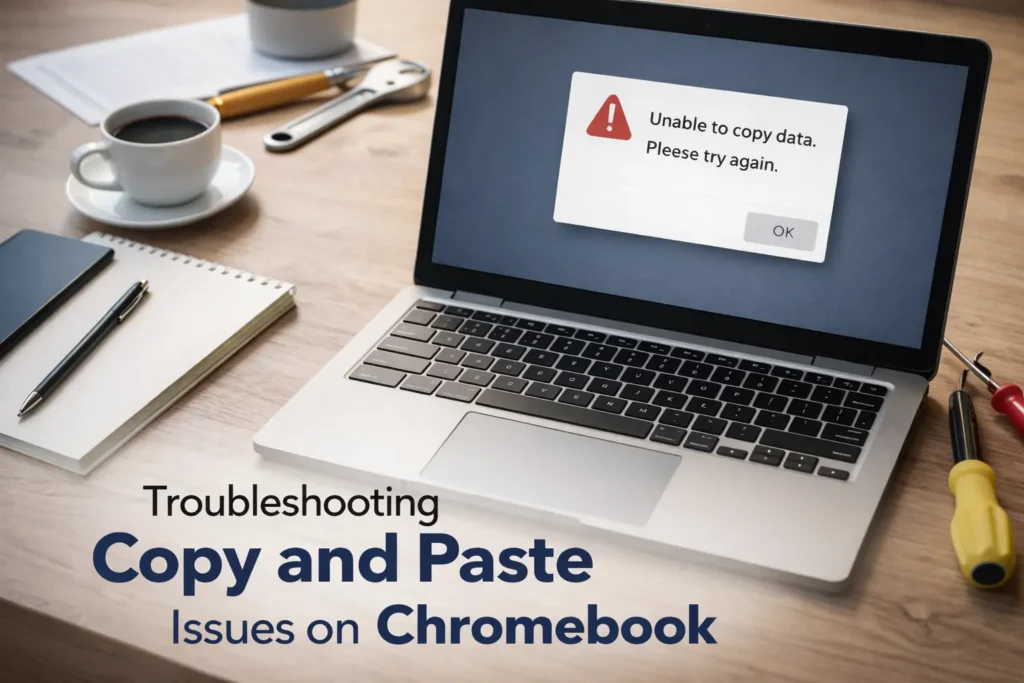
Sometimes, copy and paste may not work as expected on a Chromebook. This can happen due to temporary glitches, browser issues, or frozen applications.
In many cases, the problem is simply caused by the clipboard not refreshing properly. Restarting the Chromebook often fixes this issue quickly. If the problem continues, it may be related to a specific app or browser tab that is not responding correctly.
Another common issue occurs when extensions interfere with clipboard actions inside Chrome. Disabling recently added extensions can sometimes resolve the problem.
If copy and paste work in some apps but not others, the issue is likely app-specific rather than a system-wide error. In such cases, closing and reopening the app usually restores normal functionality.
Understanding these basic troubleshooting steps ensures that you can quickly fix minor problems without needing technical support, keeping your workflow smooth and uninterrupted.
Hidden Chromebook Clipboard Features You Should Know
Most users only use the basic copy and paste functions on a Chromebook, but ChromeOS actually includes a powerful clipboard feature that can significantly improve your productivity. One of the most useful hidden tools is clipboard history, which allows you to access items you have recently copied instead of relying on only the last copied item.
You can open this feature using a simple shortcut: Search key plus V. When you do this, a small clipboard panel appears showing multiple recently copied items, including text and links. This means you are no longer limited to just one copied item at a time, which is especially useful when working on research, writing assignments, or handling multiple pieces of information.
This feature turns the Chromebook into a much more efficient workspace because it reduces the need to constantly switch back and forth between tabs just to recopy something. Instead, you can quickly pick from your clipboard history and continue working without interruption.
How to Copy and Paste Between Apps on Chromebook
One of the biggest advantages of a Chromebook is how smoothly it handles web-based apps and Google services. Copying and pasting between different apps is extremely simple because everything is connected through ChromeOS.
For example, you can copy text from a website in Chrome, move to Google Docs, and paste it instantly without any delay. The same applies when switching between Gmail, Google Sheets, or any Android apps installed on your device.
This seamless integration is one of the reasons Chromebooks are popular for students and professionals who rely on multitasking. Instead of dealing with complex file transfers or compatibility issues, everything works through a unified system.
The key to mastering this workflow is understanding that ChromeOS is cloud-centered. That means most of your work is not tied to a single application but is instead shared across multiple services, making copy and paste between apps feel natural and effortless once you get used to it.
☑️ You might also like: Kerkt
Pro Tips to Speed Up Your Copy and Paste Workflow

Once you are comfortable with the basics, small habits can make your copy-and-paste workflow much faster on a Chromebook. One of the most effective improvements is relying more on keyboard shortcuts instead of the trackpad. Over time, using Ctrl C and Ctrl V becomes faster and more natural than navigating menus.
Another useful habit is combining the clipboard history with your daily workflow. Instead of repeatedly switching tabs to find information again, you can store multiple copied items and paste them as needed. This is especially helpful when writing long documents or collecting data from different sources.
You can also improve efficiency by organizing your tasks. For example, copying all necessary information first and then pasting it into your document in one flow can save time compared to switching back and forth between tabs repeatedly.
These small adjustments may seem minor, but together they create a much smoother and faster working experience on ChromeOS.
Conclusion
Learning how to copy and paste on a Chromebook is one of the simplest yet most powerful skills you can develop. It starts with basic keyboard shortcuts, expands into trackpad and right-click methods, and becomes even more advanced with clipboard history and multitasking across apps.
Once you understand all these methods, you can move information quickly, reduce repetitive work, and improve your overall productivity on ChromeOS. Whether you are a student, professional, or casual user, mastering these simple actions will make your Chromebook experience much more efficient and enjoyable.
In the end, copy and paste is not just a basic function; it is a core workflow tool that helps you interact with your digital world faster and smarter.
Frequently Asked Questions
How do I copy and paste on a Chromebook using keyboard shortcuts?
You can copy by pressing Ctrl and C after selecting text or an item, and paste by pressing Ctrl and V where you want the content to appear.
Why does copy and paste not work on Chromebook?
This usually happens due to temporary system glitches, frozen apps, or browser issues. Restarting your Chromebook or closing the affected app often fixes the problem.
Is it possible to copy and paste images on a Chromebook?
Yes, you can copy images from most websites by right-clicking on them and selecting copy image, then pasting them into supported apps or documents.
How do I access clipboard history on a Chromebook?
You can open the clipboard history by pressing the Search key and V together, which shows recently copied items.
Is copy and paste the same in all Chromebook apps?
Mostly yes, but some apps may handle formatting or media differently, especially Android apps or websites with restrictions.
☑️ If you’re saving this, you’ll want more. Follow New Topy.